Showing posts with label Personal Computing. Show all posts

OpenDNS - Filtering your child's web surfing for Free

· 0 comments

My daughter is old enough to know how to use the computer. She would usually just use it for playing web-based games. Initially, we would just place a shortcut on the desktop and she would just click it. If she gets bored with them, she would ask us to look for more games and we would paste the shortcut on the desktop again. It was ok for a while but kids being kids it was later proving to be a bother. So we taught her how to use Google. Now she just searches for the games she wants. Awesome! Convenient.

However, this brings the danger of her accidentally surfing sites which have adult content. Thus began my quest for parental controls and internet filtering solutions. There were a couple of them that I tried but I was looking for something that was free. Something that I myself couldn’t hack if I didn’t know the password.

I finally settled with OpenDNS.

Not only that I have an internet filter, I also have a reliable and fast DNS which is great because both my ISP’s DNS’ often crank up. You don’t even have to use their filters to avail of the DNS service. Having a reliable and secure DNS is good enough.

Now let’s continue with internet filtering….

In summary, the steps that you need to take are

1) Configure your network
2) Register for an OpenDNS account
3) Configure your account to set filters.
4) Tell OpenDNS your IP Address.

In Step 1, OpenDNS pretty much has that covered. I could never write it better myself or give better instructions. There are 3 ways you can configure your network to use OpenDNS – 1. Your computer, 2. Your router and, 3. Your DNS Server (for techies only). I would recommend #2 – configuring your router. OpenDNS has instructions for setting up commonly used or popular routers. If your router is not there, post a comment below and I’ll try to help you figure it out.

Step 2 is a no-brainer. Register for an account here. After registering for an account, you will be sent a confirmation email. Make sure you open your mail first and confirm the account. After that, you will be automatically logged in. If not, go ahead and login with the username and password you used in registration.

Step 3 tells OpenDNS what to filter for when a request for an internet address is made. First you need to create a ‘Network’. On the top menu, hit the networks tab or go to this address.

You will notice that your IP address is already placed on the form. If it’s not your IP Address or you don’t know you IP address, don’t worry about. Step 4 will take care of that.
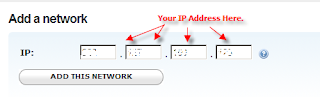


Go ahead and click “Add This Network”.

A popup will then appear like the one below.
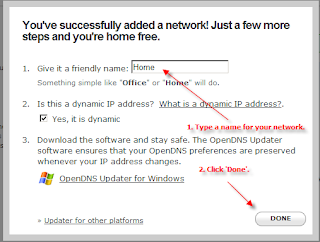


Type in a name and click ‘Done’. You may now begin setting up filters for your network.

Note: If you entering an IP address that is not on the current network you are using, you will be issued an email again to confirm your network. Make sure you open this email on a computer on the network you are adding and click the link in the confirmation email.

To setup the filters, hit the Settings Tab on the top menu or go to this address.

You will automatically be presented with a quick configuration. For most parents, ‘Moderate’ should probably enough. At least for young parents, you can still have a little but clean fun. The ‘High’ setting is probably more appropriate for office or company networks where you don’t want employees to waste time and bandwidth on social networking sites and others. If you want more control, you can go to ‘Custom’ and tick on the checkboxes.

Step 4 tells OpenDNS that it’s you making the request or that the request is coming from your network. If you have a static IP Address, you can ignore this step altogether. But if you’re like most home users, chances are you have a Dynamic IP address. For this one, you need an Updater.

When I was setting up mine about a year ago, they don’t have an Updater of their own. You have to use third-party updaters and from my experience, it was either too technical or they simply don’t work. I had to summon my programming skills and created my own updater. Recently, they’ve gotten their act together and came up with their own updater -- too bad for me, I would have loved to showcase my own updater :-).

You can download it here.

Once downloaded, launch the file and proceed with the setup. No special steps to perform here. Just click Next until you ‘Finish’. After the installation, you will be presented with a setup wizard. Likewise a no-brainer. Just put in your username and password on the first tab (Updater), hit ‘Refresh’ and you’re good to go!

Wait 3-5 minutes and try going to porn sites. Your browser should now be blocked.



IAM Flash Shield - Active Protection Against Removable Drive Viruses

· 0 comments

Recently, I released a cleanup program for viruses that spread itself through USB Flash Drives. At the moment, it only has 2 signatures – the 2 variants of the Aikelyu virus. I would add more when I get my hands on more specimens.

I am a bit surprised how widespread these infections are. I would attribute that to the increasing popularity USB Flash Drives and how easily new variants and imitations can be created. Anti-virus companies will definitely have a hard time catching up. As a matter of fact, some popular anti-viruses still can’t detect some of them. Or maybe, they just choose to ignore them. These viruses after all are more of an annoyance rather than a threat to data integrity.

I am a firm believer of the saying “Prevention is better than cure.” Rather than having the most comprehensive cleaner for every single flash drive virus out there, it’s better not get yourself infected at all. The preventive steps to manually detect and delete these viruses are simple. However, over time they can be drag.

And so, I spent the weekend building a simple utility to detect viruses lurking in your usb flash drive. It’s usually just there waiting to be activated when you use autoplay or by double clicking the drive’s shortcut in My Computer. It is an indiscriminate scan. Whenever autorun.inf points to a script or executable, it will prompt you if you recognize the script or the program. If you don’t recognize it, clicking yes would delete it. If it doesn’t find any it will prompt you that it didn’t so you can safely start using your removable drive.

There’s only a few hours of work built into this utility so don’t expect amazing stuff. But it does the job. Scans are done on program startup and every time you insert a removable drive in the computer. During first run, it will also lodge itself on the startup programs list so that it gets activated every time you log in to our computer.

In the future, I will add more functionality by integrating IAM Flash Clean. Maybe an auto updater. Or maybe you can make suggestions in the comments below. Hopefully, I have enough free time to do all that.

I called it IAM Flash Shield. You may download this active resident protection against removable usb flash drive viruses here.


IAM Flash Shield

· 0 comments

Note: This software is offered to you FREE, "AS IS" and without any warranties. Use at your own risk.

IAM Flash Shield 1.01

Features:

- Scans Removable / USB Flash Drives for hidden programs / scripts in autorun.inf
- Prompts for user action when a possible virus is found.
- Automatically detects newly inserted removable / usb flash drives.
- Automatically scans removable /usb flash drives when this program starts.
- Prompts user if removable / usb flash drive is safe to use.
- Starts automatically on Windows logon (This software adds itself to Startup Programs).

Requirements:

This software is written using the .Net Framework 2.0. Download and install before using this software.


Instructions:

1. Download the software by click the link above.
(Don't use a download manager. Files are small anyway.)
2. Unzip to any folder.
3. Double click IAMFlashShield.exe. An icon will appear on your task bar to show that it is running.


Flash Drive Viruses (Aikelyu / deadly-c.vbs / pooh.vbs)

· 0 comments

Flash drive based viruses have been on the rise recently. Most are harmless but no less annoying. I do get exposed to a lot personal computers as my job requires me to do onsite maintenance of my programs. I get exposed to them a lot and even got infected once.

Sadly, most of these seem to have been written by fellow Filipinos (or at least some variants) and most occurrences seem to be localized here in the Philippines. This probably explains why these escape the eyes of some large anti-virus companies.

The most recent one I’ve encountered is Deadly-c.vbs. It seems like a variant of the Aikelyu virus. Looking around the internet, it also occurs as pooh.vbs. It propagates itself in all writable drives except the floppy disk and during windows startup it calls Internet explorer and shows an html file containing the irritable words “f%%k you-->this is jayker felling----->PogitosGwaposAmigosGarantisadosGalantis Kaayos!!”.

This time I finally decided to deal with it. I’m a VB programmer myself and this one being written in vbscript I can read and look at what it does. So it’s fairly easy to come up with a cleanup program. I named it IAMFlashClean and I’m hoping make it clean other viruses of the same kind as I encounter them.

You can download the IAMFlashClean Aikelyu virus cleaner here should anyone would want to use it.


IAM Flash Clean

· 0 comments

Note: This software is offered FREE, "AS IS" and without any warranties. Use at your own risk.

IAMFlashClean 1.00

Virus Signatures:
- Aikelyu (Deadly-c.vbs)
- Aikelyu (pooh.vbs)

Requirements:

This software is written using the .Net Framework 2.0. Download and install before using this software.


Instructions:
1. Download the software by click the link above.
(Don't use a download manager. Files are small anyway.)
2. Unzip to any folder.
3. Double click IAMFlashClean.exe to begin cleaning.
4. A reboot may be required after cleaning.


If you want active protection against flash drive viruses, trojans and worms consider using IAM Flash Shield.

Recent Posts

About Me

Alain Rivas
A software / web developer by profession.
A Born-Again Christian by Faith.
A father of two (with one on the way).
A husband of one.
Once a radio disc jockey for eight years.
Now a geek glued to his computer.
View my complete profile